
Microsoft 365 · Business file storage
Does SharePoint Storage Count Against Your OneDrive Storage?
When businesses start using Microsoft SharePoint to store and share documents, one common question is:
"If I create a SharePoint site and upload files, will those files consume my personal OneDrive storage or my company's Microsoft 365 storage?"
The short answer is that files uploaded to a SharePoint document library generally consume your organisation's SharePoint storage allocation, not your personal OneDrive storage quota.
However, the actual storage usage depends on where the files are stored, your Microsoft 365 subscription, and how file versions are managed.
1. Understanding SharePoint and OneDrive Storage
Although SharePoint and OneDrive are both part of Microsoft 365, they serve different purposes and have separate storage allocations.
SharePoint: Storage for Teams and Organisations
SharePoint is primarily designed for collaboration, document management, and shared business information.
When you create a SharePoint site and upload documents into its document library, those files are stored in SharePoint and count towards the organisation's SharePoint storage allocation.
For example, your company may create SharePoint sites for:
- Human Resources documents and policies
- Sales proposals and quotations
- Project documentation
- Accounting and administrative files
- Company-wide shared documents
These files do not normally consume an individual employee's OneDrive storage quota.
OneDrive: Storage for Individual Users
OneDrive for Business is designed primarily for individual work files, although users can share their files with colleagues or external parties.
Files uploaded directly into your OneDrive consume your individual OneDrive storage allocation.
Important: Sharing a file from OneDrive does not automatically transfer it into SharePoint storage. The file continues to consume the storage allocation of the OneDrive account where it resides.
2. SharePoint vs OneDrive vs Microsoft Teams Storage
The following table explains how storage is typically allocated across Microsoft 365 services.
| Microsoft 365 Service | Storage Location | Storage Quota Used |
|---|---|---|
| SharePoint Site | SharePoint document library | Organisation's SharePoint storage |
| OneDrive for Business | Individual user's OneDrive | Individual OneDrive quota |
| Microsoft Teams Standard Channel Files | SharePoint document library | Organisation's SharePoint storage |
| Microsoft Teams Chat Files | Sender's OneDrive, for typical chat uploads | Sender's OneDrive quota |
Practical example: If an employee uploads a 500 MB file into a SharePoint team site's document library, the file generally consumes SharePoint storage rather than the employee's OneDrive quota.
If the same employee uploads that file into their personal OneDrive folder and shares a link with colleagues, the file remains within their OneDrive storage allocation.
3. How Much SharePoint Storage Does Microsoft 365 Provide?
For Microsoft 365 Business Basic, Standard and Premium subscriptions, Microsoft's standard SharePoint storage allocation is calculated using the following formula:
1 TB base storage + 10 GB for each qualifying licence purchased.
This storage is shared across the organisation's SharePoint sites rather than assigned separately to every user.
Example: SharePoint Storage Allocation
| Qualifying Licensed Users | Approximate SharePoint Storage |
|---|---|
| 1 user | 1 TB + 10 GB |
| 5 users | 1 TB + 50 GB |
| 15 users | 1 TB + 150 GB |
| 50 users | 1 TB + 500 GB |
For example, a company with 15 qualifying Microsoft 365 Business Basic licences would typically receive a shared SharePoint storage allocation of 1 TB plus 150 GB.
This is separate from the individual OneDrive storage allocation available to each licensed user.
Note: Actual storage entitlements depend on the Microsoft 365 plan, licensing eligibility, and any additional storage purchased. This formula is not universal: Microsoft 365 F1/F3 and Office 365 F3 have different allocations, and Education tenants have separate rules. Do not apply the Business plan example to every subscription. Administrators should verify the allocation shown in their own Microsoft 365 tenant.
4. How to Check Your SharePoint Storage Usage
If you are a Microsoft 365 administrator, you can check your organisation's SharePoint storage usage through the SharePoint Admin Center.
- Sign in to the Microsoft 365 Admin Center.
- Open Admin centers and select SharePoint.
- Navigate to Sites > Active sites.
- Review the storage usage for individual SharePoint sites.
- Check the overall SharePoint storage allocation and consumption displayed in the admin interface.
These details help administrators identify which SharePoint sites are consuming the most storage. Reported usage may lag changes by 24–48 hours. Microsoft currently documents a 25 TB maximum per site, but this is a technical ceiling, not extra capacity: the organisation must still have enough pooled storage. Administrators can use automatic pooling or set manual site limits. Interface labels and availability may vary by tenant.
Administrator permissions are required to access the relevant storage management information.
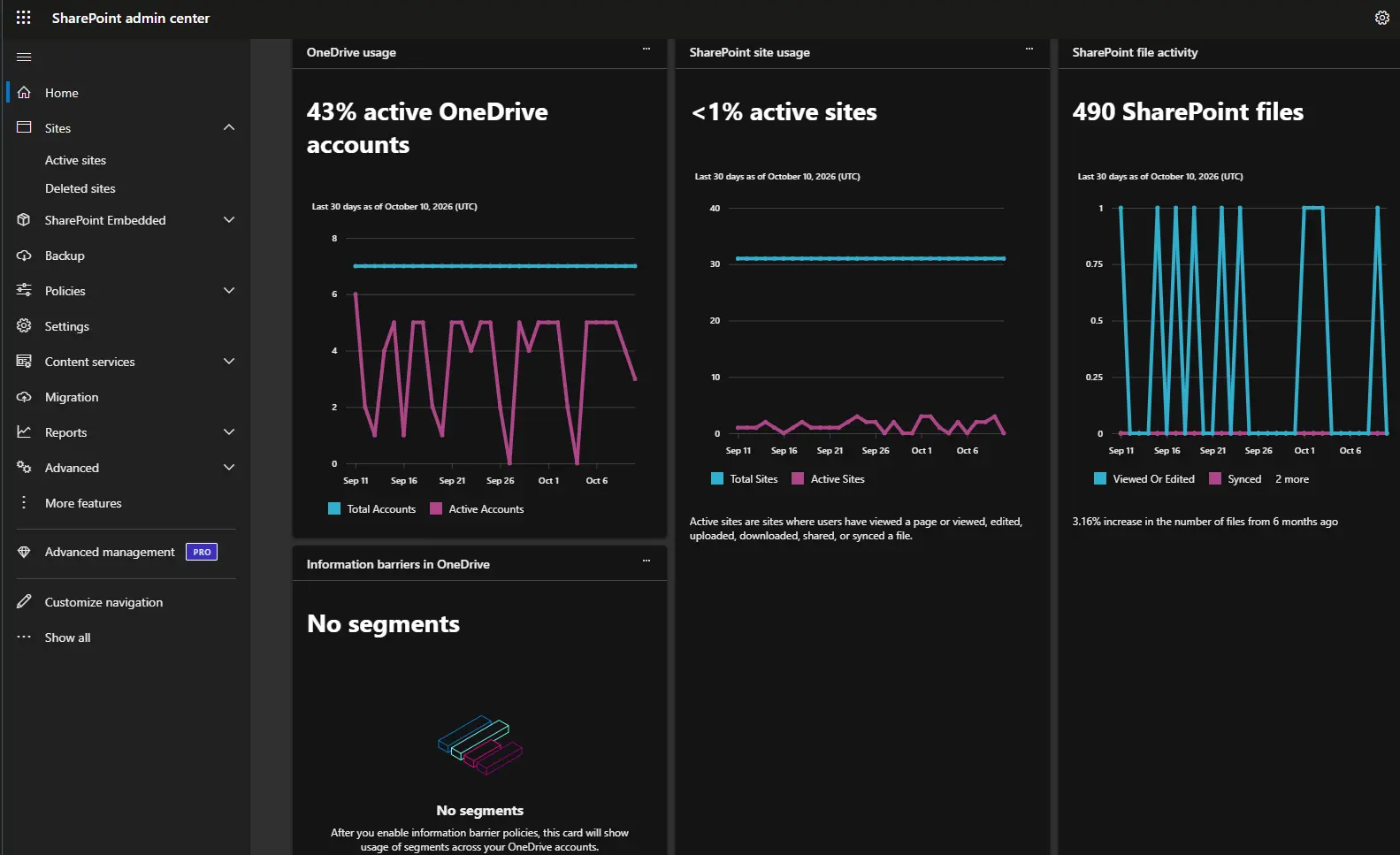
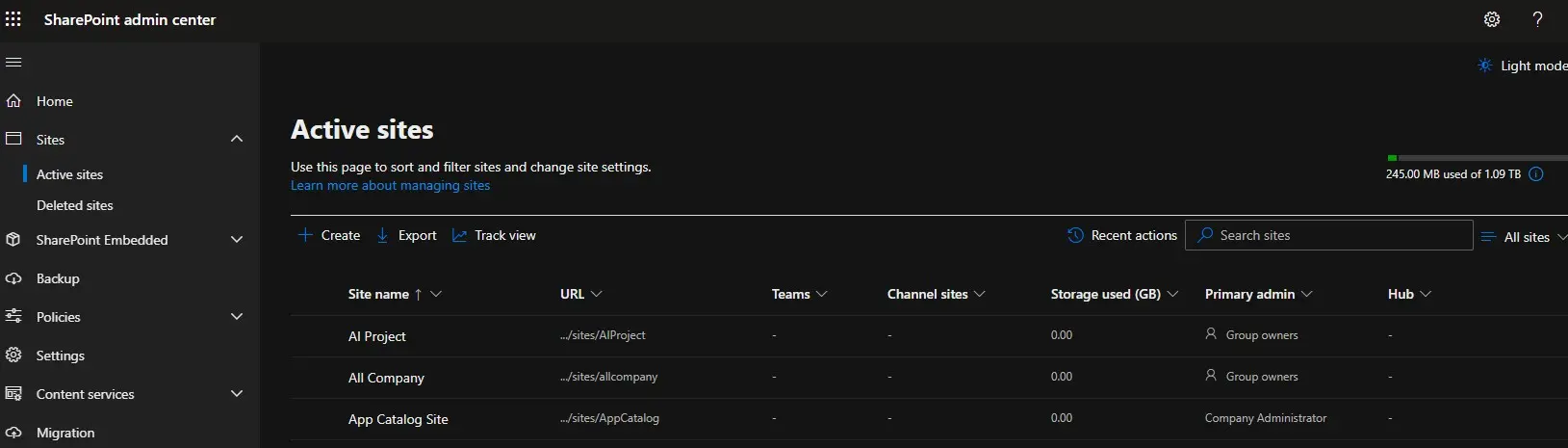
Screenshots supplied for this guide. The values shown belong to the pictured environment and do not establish your organisation’s entitlement. Your interface and figures may differ.
5. Why SharePoint Storage May Increase Faster Than Expected
One important consideration is that SharePoint storage consumption is not always equal to the total size of the latest files visible in a document library.
File Version History
SharePoint supports document version history, allowing users to recover or review earlier versions of a file.
However, retained file versions also consume storage.
For example, if a large PowerPoint presentation is frequently updated, multiple retained versions may increase the storage used by the document library.
Administrators should review version history settings and retention requirements rather than assuming only the latest file size contributes to storage consumption.
Automatic Version Limits: Storage Savings and Recovery Trade-offs
Microsoft recommends Automatic limits to keep denser recent history and fewer older restore points as versions age. This can reduce storage, but a particular older edit may no longer be available. Choose limits around recovery needs, rather than storage savings alone.
Manual count or expiry limits offer different trade-offs: keeping more versions uses more storage; aggressive expiry can remove history needed to undo changes. Libraries needing specific historical evidence may require exceptions, reviewed alongside retention obligations.
Changing defaults for new libraries does not trim existing history. Before trimming older versions, review a version-storage report and run a What-if analysis. Microsoft warns that trimming jobs permanently delete versions outside the normal recycle-bin recovery path; restoration depends on a suitable prior backup. Pilot changes and test recovery before wider rollout.
See Microsoft’s version-storage planning guidance and existing-version trimming precautions.
Recycle Bin
Deleting a file from a SharePoint document library does not necessarily release its storage immediately.
Microsoft counts storage used by site Recycle Bins within the organisation’s total storage limit. Deleted sites in the admin centre Recycle Bin are treated differently: Microsoft excludes them from the organisation’s total usage. Do not assume every deletion immediately frees capacity; check storage reporting and retention requirements before clearing recoverable content.
Retention Policies
Organisations using Microsoft Purview retention policies or retention labels may retain additional file copies to meet compliance requirements.
Retained content in the Preservation Hold library counts towards the site’s storage quota, even after users modify or delete the original documents. Retention and version policies interact, so changing version limits does not necessarily remove content that must be retained. Retention is not equivalent to independently tested backup and recovery; define recovery requirements and test restoration separately.
Security and compliance consideration: Do not permanently delete document versions, Recycle Bin contents, or retained records without first checking business recovery requirements and applicable retention policies.
6. Should Your Business Use SharePoint or OneDrive?
The decision should not be based on storage capacity alone. Businesses should also consider document ownership, collaboration, access permissions, and continuity when employees leave the organisation.
| Business Requirement | Recommended Platform |
|---|---|
| Personal working documents | OneDrive |
| Department shared documents | SharePoint |
| Project collaboration | SharePoint or Microsoft Teams |
| Company policies and procedures | SharePoint |
| Personal drafts before team publication | OneDrive |
| Long-term business records | SharePoint with appropriate governance and retention settings |
For important company documents, SharePoint is often more suitable because files can be managed through organisational ownership, site permissions, and established governance processes.
However, storing documents in SharePoint does not automatically guarantee that they are properly secured or backed up.
If you are reviewing licensing, business email setup or user administration alongside file storage, explore WebService’s Microsoft 365 services to discuss the appropriate scope.
Practical examples for departments
These are hypothetical examples, not client case studies:
- HR: Keep an individual policy draft in OneDrive; publish approved policies in a SharePoint library with appropriate access. Restrict confidential employee records separately.
- Finance: Use a restricted team library for shared budgets and approved financial records, with defined permissions and retention.
- Sales: Draft a proposal individually in OneDrive, then move the team’s approved proposal templates and shared pipeline documents into a governed library.
- Project teams: Use a SharePoint project library or Teams channel for deliverables that colleagues need to maintain after a team member changes role.
Who Owns Company Files When an Employee Leaves?
Making one employee’s OneDrive the sole long-term home for departmental documents ties access and continuity to that account. Sharing links with colleagues does not change the storage location or establish a durable departmental home.
OneDrive content does not necessarily disappear immediately when an employee leaves. Account deletion, licence changes, configured retention, delegated access and compliance policies affect what happens next. Administrators should review the applicable offboarding and unlicensed-account rules, arrange authorised access and transfer company-critical shared documents before access becomes a problem.
What should an IT manager check before moving files?
Confirm permissions and external sharing, supported file types and paths, application dependencies, expected storage growth, retention obligations and backup/recovery requirements. Test a representative workflow before moving an entire file server.
7. Best Practices for Managing SharePoint Storage
Businesses using SharePoint should adopt basic storage governance practices to prevent unnecessary consumption and reduce operational risks.
- Monitor storage usage: Review storage consumption regularly through the SharePoint Admin Center.
- Manage version history: Apply appropriate version limits based on document recovery and retention needs.
- Review access permissions: Use least-privilege access and avoid unnecessary external sharing.
- Organise document libraries: Separate files by department, project, or business function where appropriate.
- Establish retention policies: Define how long important business documents must be retained.
- Plan for backup and recovery: Evaluate whether native Microsoft 365 recovery features meet the organisation's requirements or whether additional backup protection is needed.
8. Frequently Asked Questions
Does uploading files to SharePoint reduce my OneDrive storage?
No. Files uploaded directly into a SharePoint document library generally consume the organisation's SharePoint storage allocation, not your personal OneDrive quota.
Does every SharePoint site get 1 TB of storage?
No. The standard 1 TB base allocation for eligible plans is generally shared at the organisation level. Individual SharePoint sites use storage from that shared allocation, subject to site limits and administrative settings.
Does Microsoft Teams use SharePoint storage?
Yes. Files uploaded to standard Microsoft Teams channels are generally stored in SharePoint. Files shared through Teams chats are typically stored in the sender's OneDrive. Each private or shared channel has its own SharePoint site; standard channels in a team share the parent team site. Sharing an existing file link does not move the file to a new storage location.
Will syncing SharePoint files to my computer consume OneDrive cloud storage?
No. Syncing SharePoint document libraries using the OneDrive sync application does not normally duplicate those files into your personal OneDrive cloud storage.
However, locally downloaded or synchronised files may consume disk space on your computer.
What happens when SharePoint storage is full?
If a tenant continues operating above its SharePoint storage limit, Microsoft warns that the environment risks being put into read-only mode, preventing additions or changes. Individual site limits can also restrict a site before the tenant pool is full. Administrators should review storage consumption, retention settings, and available storage capacity before the limit is reached.
Can SharePoint replace a traditional company file server?
SharePoint can replace some traditional file-sharing workflows, particularly for Office documents and team collaboration. However, it is not a direct replacement for every file server workload.
Businesses should evaluate file types, application dependencies, permissions, migration requirements, and network connectivity before moving their entire file server environment into SharePoint.
Conclusion
SharePoint and OneDrive provide different storage functions within Microsoft 365.
Files stored in SharePoint generally use the organisation's shared SharePoint storage allocation, while files stored in OneDrive use the individual user's OneDrive quota.
For businesses, understanding this difference is important when planning document collaboration, Microsoft 365 licensing, storage capacity, and information governance.
Before expanding SharePoint usage, administrators should verify their actual storage entitlement, review document retention requirements, and establish a practical approach to monitoring and recovery.
Official Microsoft Documentation
For further technical information, refer to Microsoft's documentation:
- SharePoint limits and storage specifications
- Manage SharePoint site storage limits
- Plan document version storage in SharePoint
- Teams and SharePoint site integration
- File storage in Teams chats and channels
- Configure retention settings and storage implications
- Retention and Preservation Hold storage
- OneDrive retention and employee account deletion
- Sync SharePoint and Teams files to your computer